Help
Connect your AI assistant to Pando
You can let an AI assistant such as Claude work with your office's data in Pando. You sign in with your own Pando account and choose whether the assistant may only read or also write. Pando's own screens are shown in Dutch or French.
ChatGPT: Coming soon
What is it?
Pando has its own connection for AI assistants (an MCP server). Once connected, you can ask your assistant things like "which leads came in this week?" or "create a task to call back the seller on Church Street". The assistant works with your rights in Pando, inside your office.
Connect Claude
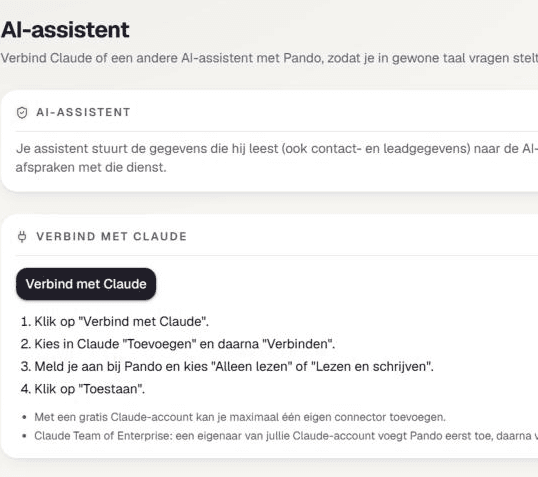
- In Pando, open the "AI-assistent" menu and click "Verbind met Claude" (or use the button above).
- Claude asks you to add the connector. Confirm.
- You land on Pando's consent screen. Sign in if you haven't yet.
- Choose "Read only" (the default) or "Read and write" and click "Allow". "Deny" changes nothing.
- Done: the connection appears in Pando under your connections.
Custom connectors work in Claude on Free, Pro, Max, Team and Enterprise. On Free you can have at most one custom connector. On Team only an Owner or Primary Owner adds the connector; after that each member connects themselves. On Enterprise, Owners, Primary Owners or people with the "Manage access to Libraries" role do this.
Button not working? The owner of your office may have switched AI assistants off under "Instellingen" › "AI-verbindingen".
What the assistant can do
With "Read only":
- view your office's properties (without commission)
- view contacts
- view leads in your Leads inbox
- view tasks
- see which portals a property is published on
With "Read and write", also:
- create contacts and add notes
- put leads in your Leads inbox (your team then gets the usual new-lead notification)
- create tasks
- create and change properties, including their status, and add photos
- publish to portals and take adverts offline, only if your Pando account may publish (some portals charge per new listing, such as Immoweb)
What the assistant cannot do
- Delete anything: there is no delete function for assistants.
- See commission or billing.
- Read or act outside your office.
- Do more than you may do yourself in Pando: your rights are checked again on every request.
- Work when your office's owner has switched AI assistants off.
Disconnect
In Pando, go to "AI-assistent" and click "Verbinding verbreken" next to the connection. From then on the assistant has no access.
Note: removing the connector inside Claude does not cut access on Pando's side. Always do it in Pando too.
Owners see every connection of the office under "Instellingen" › "AI-verbindingen", can cut any of them and can switch AI assistants off for the whole office.
Privacy and data
What the assistant reads goes to the AI provider you chose (for example Anthropic for Claude), under your agreement with that provider.
For a connection, Pando stores only a hashed fingerprint of the keys, which assistant it is, which rights you gave and when it was last used. An access key is valid for 1 hour; the connection stays valid for 60 days and is renewed when used. Expired keys are deleted after 7 days.
Questions? Email info@pando.immo. More in our privacy policy (Dutch).
Other apps
Microsoft Copilot Studio, Mistral Le Chat and Perplexity let (admins of) paid workspaces add their own MCP server. Whether the app can send an API key depends on the app; we have not tested it yet. If it can, use an API key created by an owner or admin under "Instellingen" › "API" (see the link below). Such a key works for the whole office, not per person.
For Claude Code and Cursor, use the same API key:
Technical details are in the developer documentation.
Claude Code and Cursor (with an API key)
# Claude Code
claude mcp add --transport http pando https://www.pando.immo/api/v1/mcp \
  --header "Authorization: Bearer pando_sk_..."

# Cursor (.cursor/mcp.json)
{ "mcpServers": { "pando": { "url": "https://www.pando.immo/api/v1/mcp",
  "headers": { "Authorization": "Bearer pando_sk_..." } } } }